
You Can Now Use ChatGPT Inside Microsoft Word, Excel & PowerPoint. Here’s How
OpenAI has officially launched ChatGPT for Microsoft Word. Here's how to set it up.


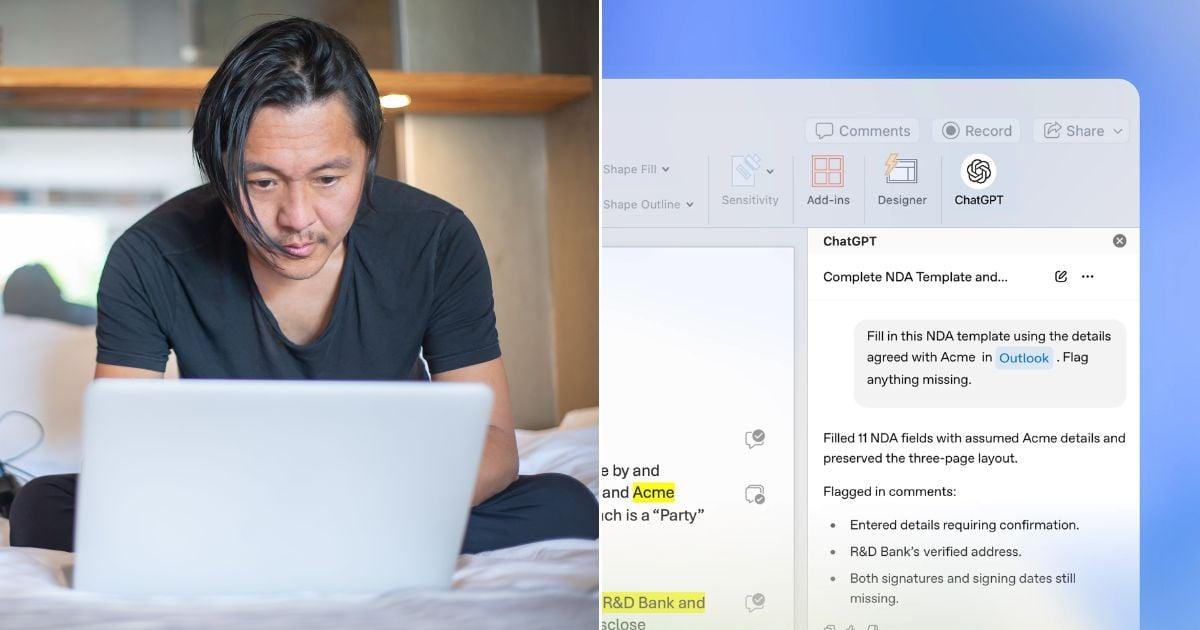 Cover image via
 Follow us on Instagram, TikTok, and WhatsApp for the latest stories and breaking news.
OpenAI has officially rolled out ChatGPT for Microsoft Word, bringing its wildly popular chatbot directly into your daily word processor
With this new integration, users can draft and edit documents without ever leaving the application and switching between browser tabs.
You can now install the ChatGPT add-in to handle tedious tasks like formatting text, running advanced spellchecks, and polishing your grammar.
It also works wonders for those messy brainstorming sessions that usually end up scattered across multiple pages.
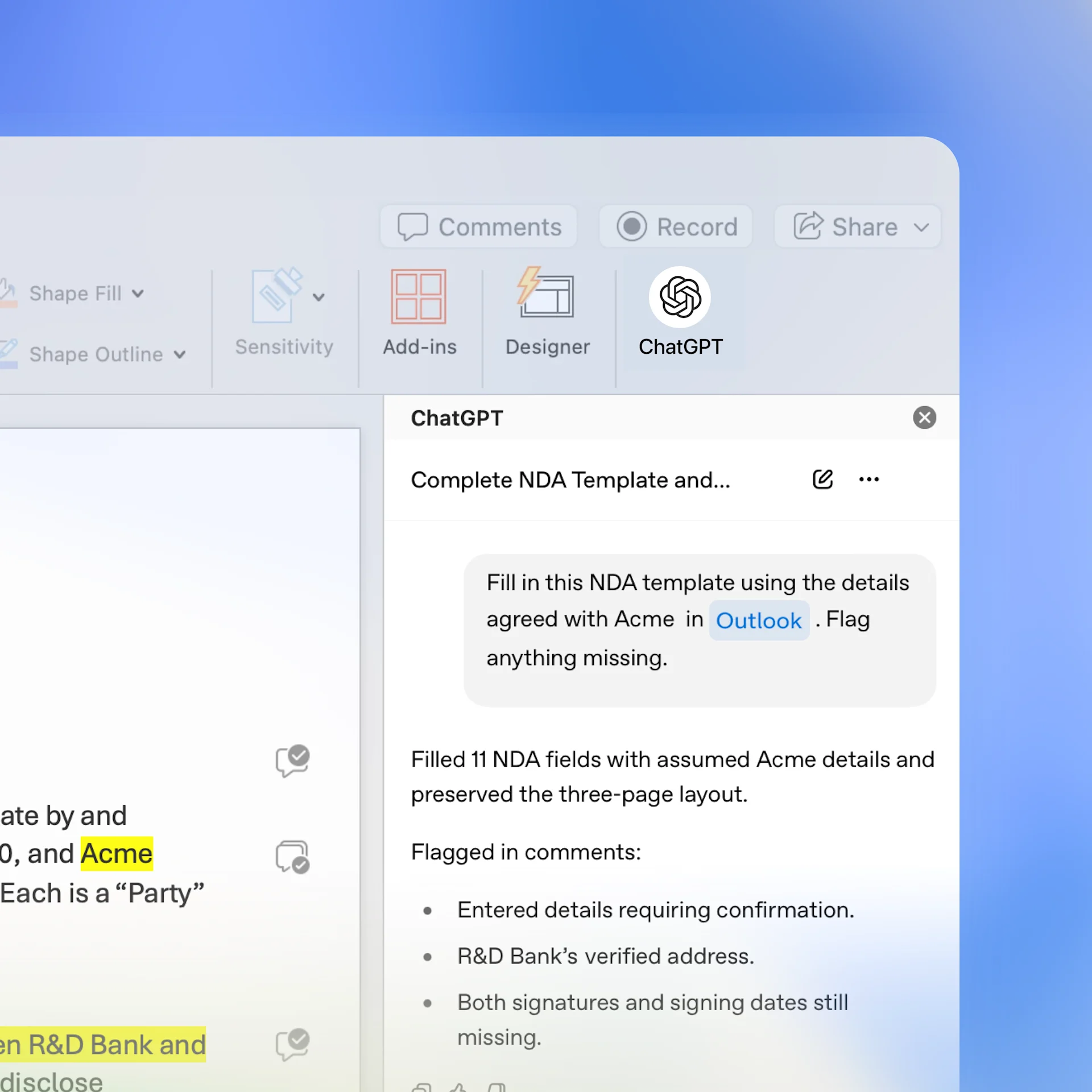
ChatGPT now effortlessly transforms your rough notes into structured initial drafts directly on Microsoft Word
Whether you are refining a university essay or compiling a weekly business report, the editing process has become significantly smoother.
On Excel and PowerPoint, you'll be able to seamlessly create charts, tables, and slides through prompts.
Anyone using the software can add the extension right now to start supercharging their workflow. Just remember to give your final document a quick read before hitting send.

Here's how to integrate ChatGPT with Microsoft Word
- STEP 1: Search for ChatGPT on Microsoft Marketplace and click on 'Get it now' (If you're not signed in to Microsoft Marketplace, you'll be prompted to do so).
- STEP 2: ChatGPT will give you the option launch the AI chatbot on either Microsoft Word, Excel, or PowerPoint. Pick one.
- STEP 3: You'll be prompted to sign in to your ChatGPT account. You may need to provide Microsoft administrator access.
That's it! ChatGPT is available across all Microsoft plans including Free, Go, Plus, Pro, Business, Enterprise, Edu, Teachers, and K–12.
